
Card Control
New and Improved Card Control
Use City National Bank's App To Take Control Of Your Cards With Card Control
 Android App OnGoogle Play
 Download OnApple Store
Ready for an easier way to manage your cards? Our upgraded card experience puts more control, convenience and safety in your hands. From instant card activations to clearer merchant transaction info to robust fraud protections, now you can do even more from one convenient place. Read about these great features below!
Card Control from City National Bank gives you one less thing to worry about. Card Control allows you to activate your new card, turn your card on/off, or disable it permanently right from CityNET or the mobile app. Visit your nearest branch today to see what Card Control can do for you!
GETTING STARTED WITH CARD CONTROL
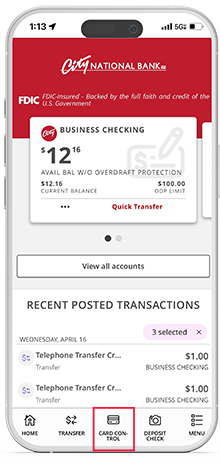
After logging in, tap “Card Control” to get started.
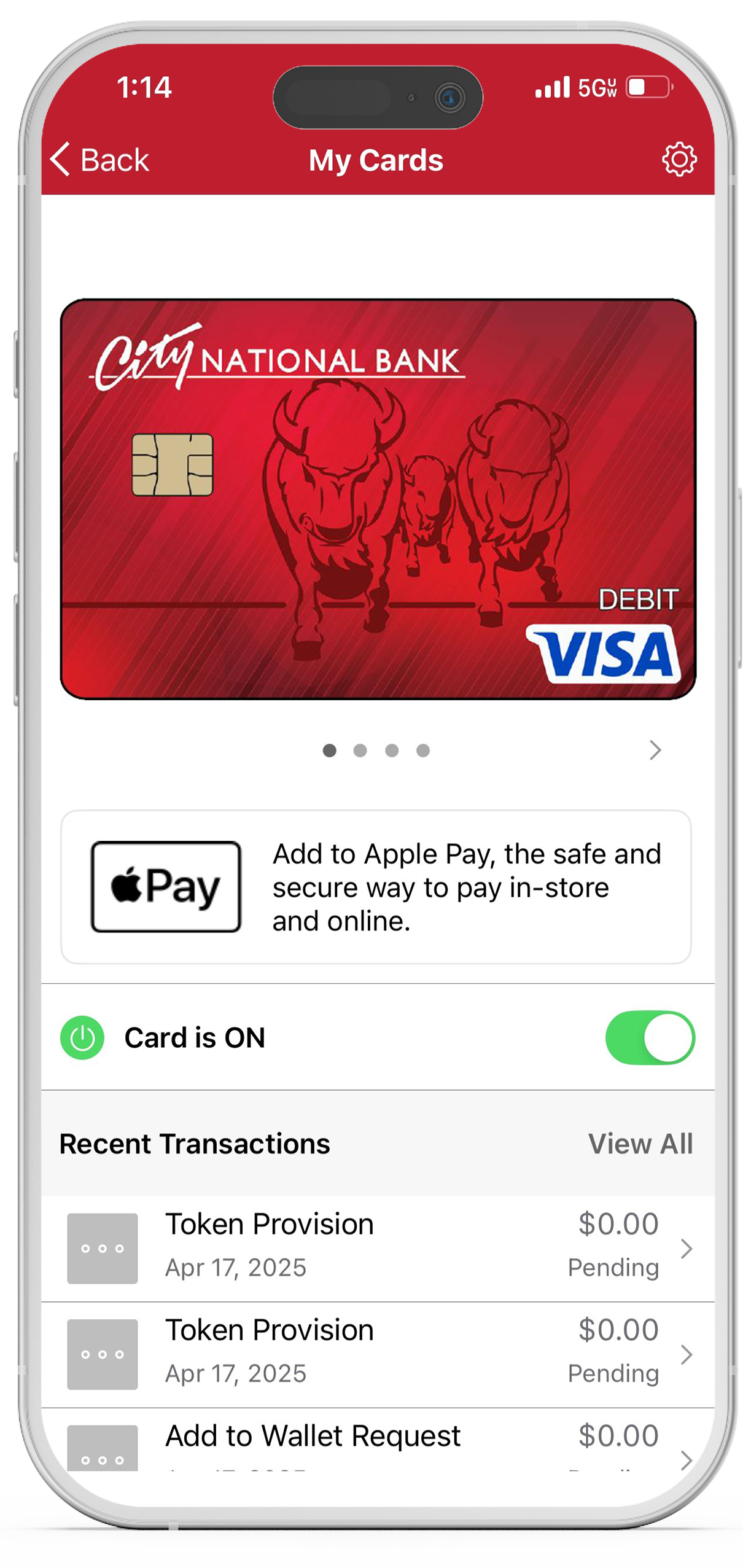
Turn your card on/off. View any recent transactions. Swipe through the carousel to add or view additional cards. Add your card to your digital wallet (Apple Pay, Gpay).
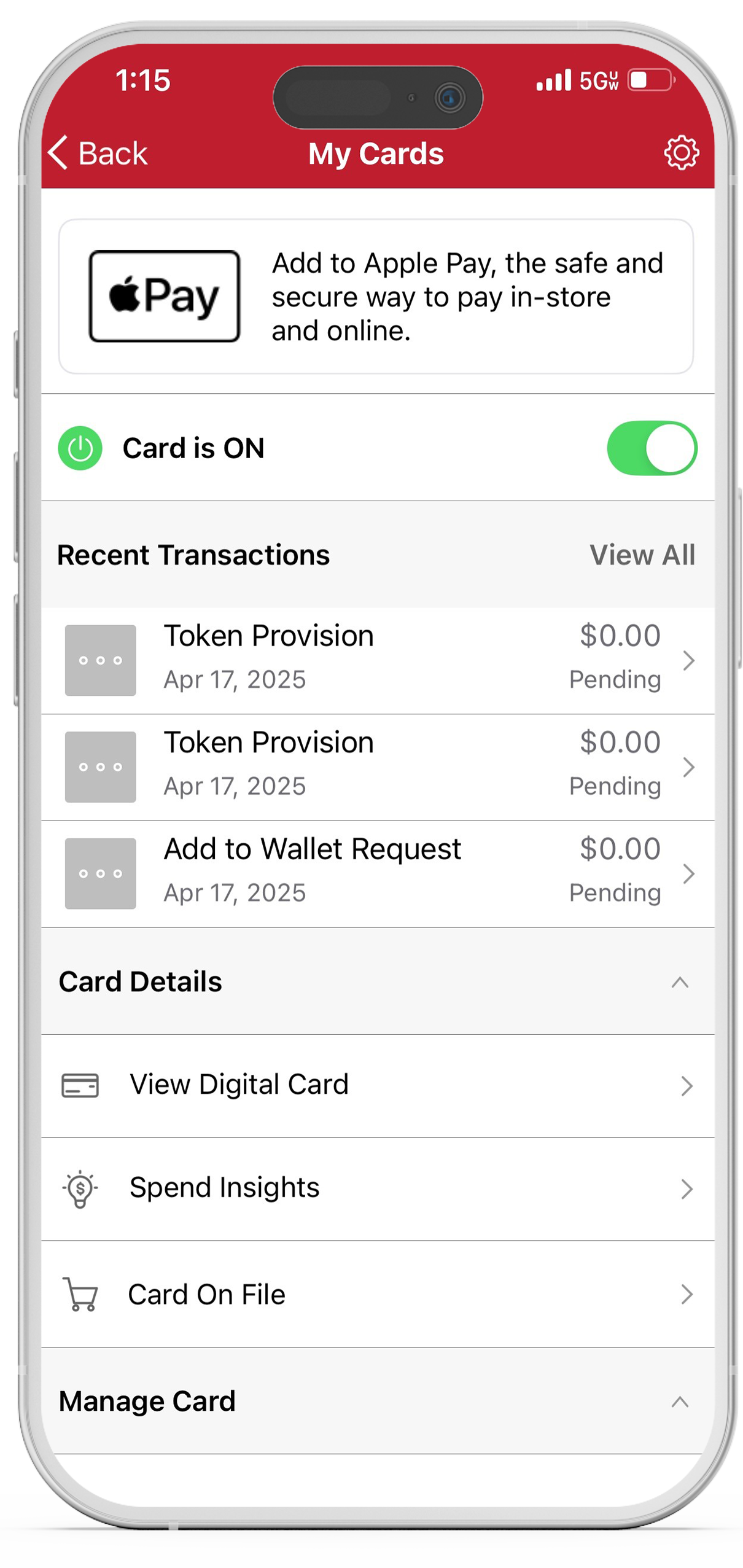
Scroll down for more options:
• View digital card, including your
card number.
• View spend insights.
• See which merchants store
your information.
SETTING UP CARD CONTROLS (PART 1)
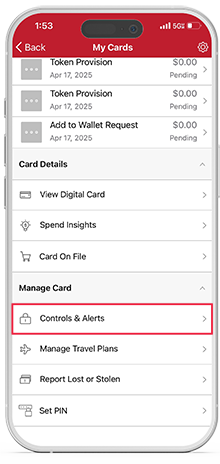
After logging in, tap “Card Control” to get started.
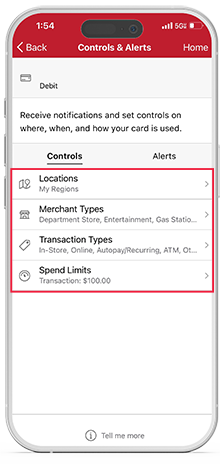
Use Controls to manage
• Locations
• Merchant Types
• Transaction Types
• Spend Limits
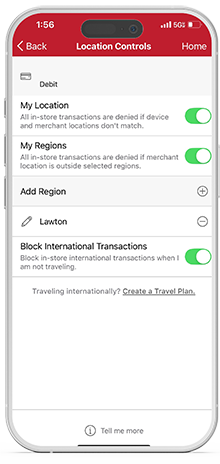
Enable “My Location” to limit transactions to your phone’s GPS, and “My Region” to set geographic boundaries. You can also block all international transactions.
REPORTING A LOST OR STOLEN CARD
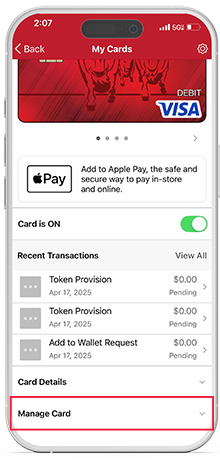
Tap “Manage Card” under your missing card.
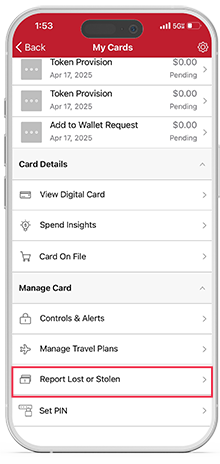
Tap “Report Lost or Stolen.”
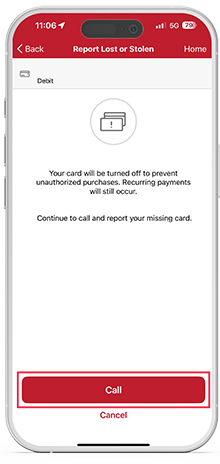
Tap “Call” to dial our Contact Center service line. We will disable your card and get a new card on its way.
VIEWING MERCHANTS, RECURRING PAYMENTS, AND YOUR CARD(S)
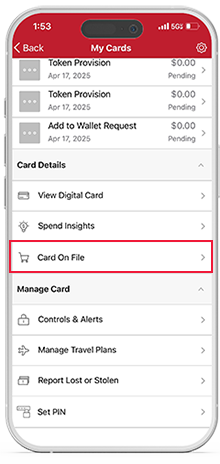
To see which merchants store your card, tap “Card on File” under Card Details.
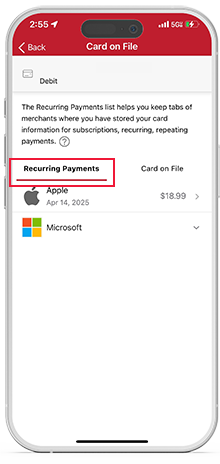
“Recurring Payments” shows merchants that have your card stored for subscription services, like video streaming or utilities.
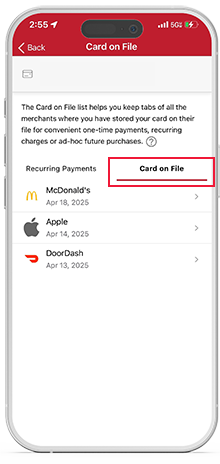
“Card on File” shows merchants that have stored your card for future use, like online shopping or ride share services.
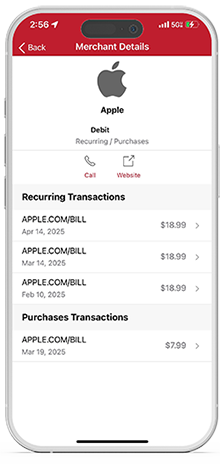
Tap on a merchant to view their details, including any recent transactions and their contact information.
VIEWING SPEND INSIGHTS
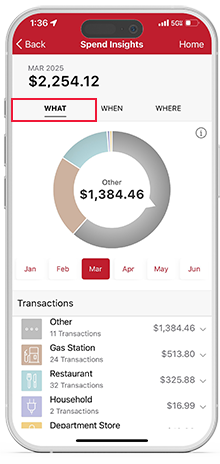
Tap “What” to view a breakdown of your spending categories.
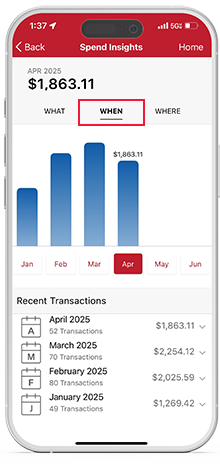
Tap “When” to view a breakdown by month.
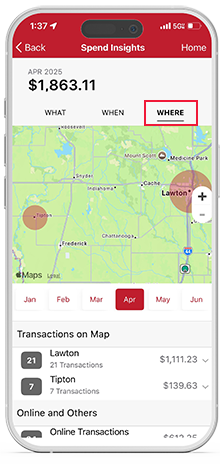
Tap “Where” to view the location of your transactions on a map.
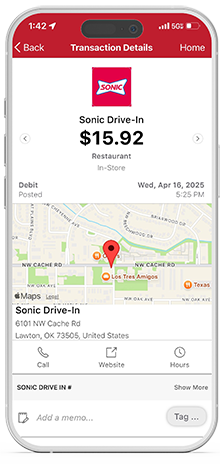
Tap on a transaction to view the merchant's name, logo, map, and contact information.
SETTING UP CARD CONTROLS (PART 2)
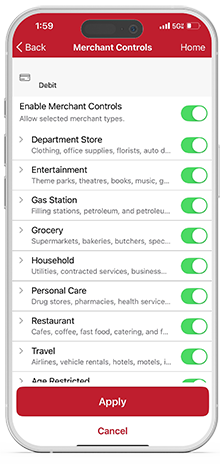
Select the merchant types you want to allow by tapping the toggle for each. When finished, “Apply.”
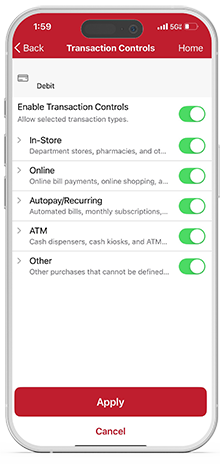
Select the transaction types you want to allow by tapping the toggle for each. When finished, “Apply.”
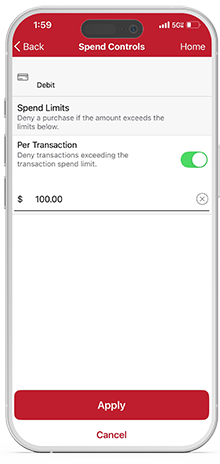
Spend Controls put a cap on your spending by limiting transaction amounts. Turn on the toggle, enter your desired amount, and “Apply.”
ADDING TRAVEL PLANS
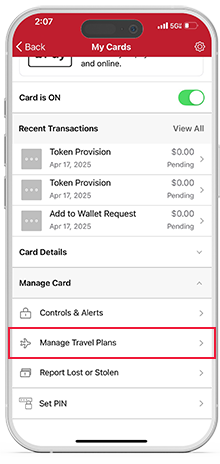
To add upcoming travel plans, tap “Manage Card,” then “Manage Travel Plans.”
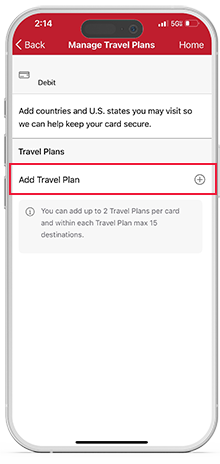
Tap “Add Travel Plan” to add the countries and U.S. states for your trip.
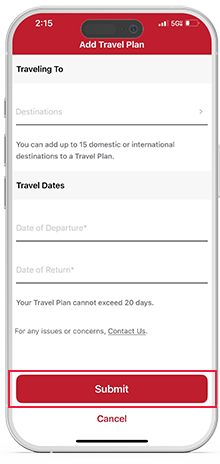
Enter your destination(s), dates of departure and return, and tap “Submit.”
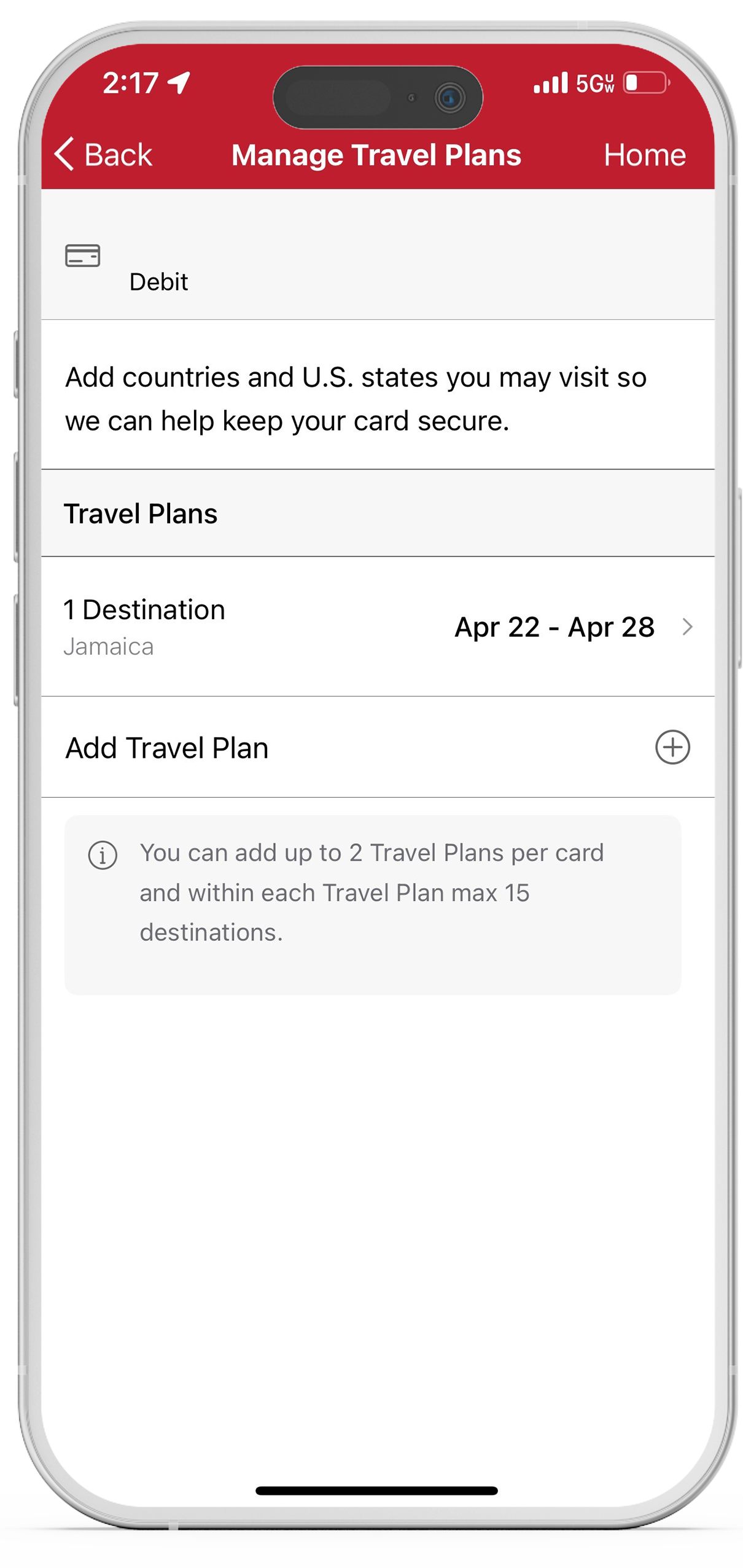
Once submitted, it will display on the “Manage Travel Plans” screen. You can edit or delete it at any time.
ADD TO DIGITAL WALLET
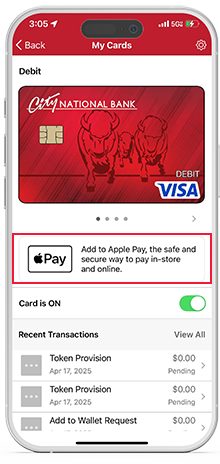
For IOS Users - To add a new card to your digital wallet, tap the Apple Pay icon.
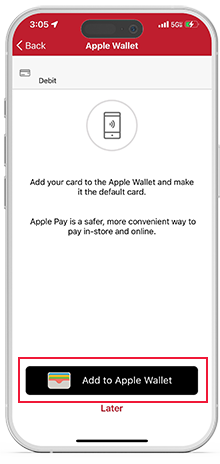
For iOS users, tap “Add to Apple Wallet.”
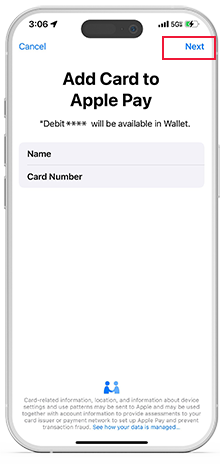
Your card information is prefilled. Just tap “Next” to add it to your digital wallet!
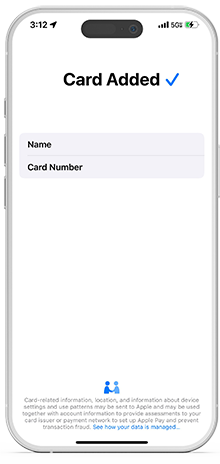
Once added, you’ll see a confirmation screen. Tap “Done” to return to your mobile app.
CHANGE PIN
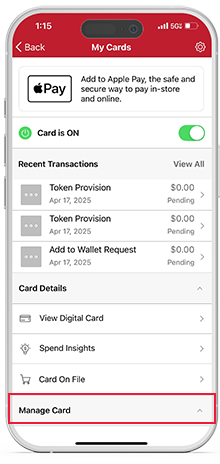
Tap “Manage Card” under the card you want to change.
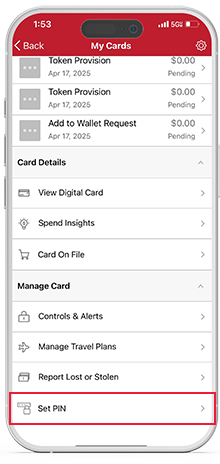
Tap “Set PIN”
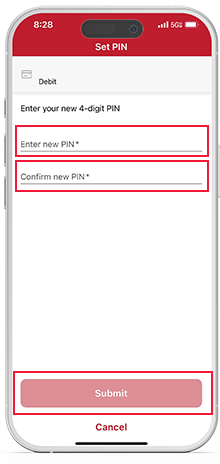
Enter new 4-digit PIN and confirm and tap “Submit.”
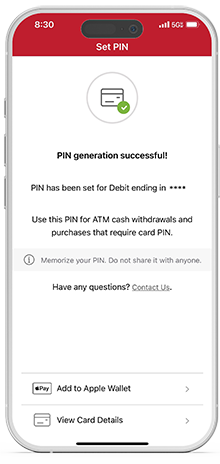
Once submitted, it will display “PIN generation successful!”
ACTIVATE CARD
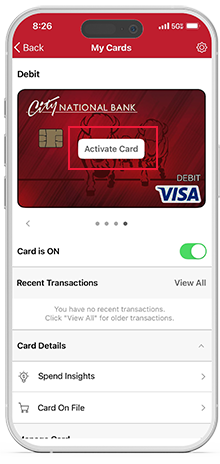
Tap “Activate Card” on the card you want to activate.
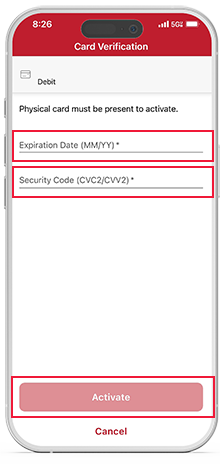
Enter expiration date and CVV security code then press "Activate".
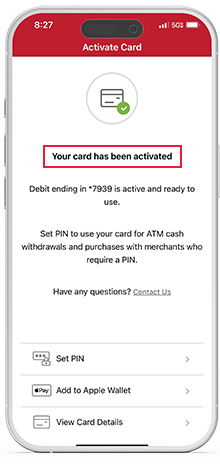
Once activated, it will display “Your card has been activated.”